
Contributing
This guide explains our contribution guidelines and how you can contribute to the All Contributor projects. There are many ways to contribute, from ideas over coding to
Help improve the All Contributors documentation!
Section intitulée « Help improve the All Contributors documentation! »Merci beaucoup pour votre intérêt pour le projet ! Pull Requests are welcome for any type of improvement, from a small typo to a new section in the docs. Help us make the project better!
All of the source code for the documentation is available in this repository. The All Contributors bot lives in the app repository. And the All Contributors CLI lives in the cli repository.
How to commit
Section intitulée « How to commit »We use the angular commit convention for commits that are used for an automated changelog generation, so it would be advisable to respect that.
If you’re not used to it or are afraid to mistype a commit, you can run npm run commit or git cz (if you have installed commitizen) which would take you through a few questions and write the commit for you.
Modifier le contenu
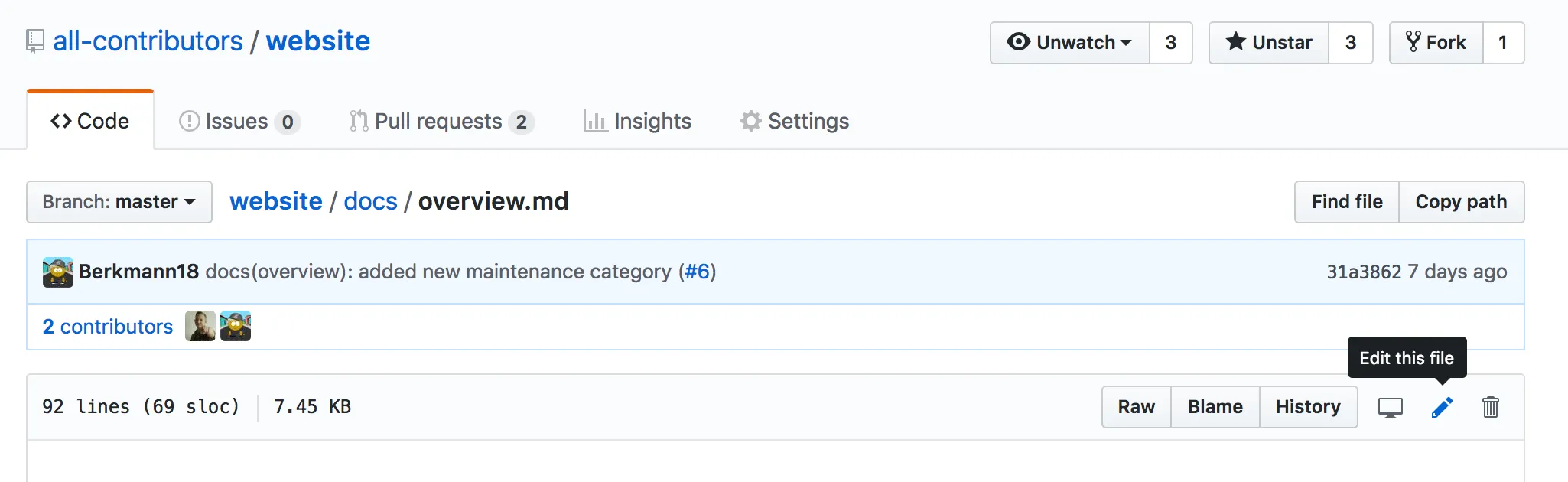
Section intitulée « Modifier le contenu »Once on a file, click the ‘pencil’ icon to easily edit the file inline. After making your changes, create a commit with your changes. You will want to create and commit these changes on a new branch in your fork of the repository.
After committing your changes, you can create a pull request to propose your changes to be merged into the main branch.
Traductions
Section intitulée « Traductions »
Nos traductions sont gérées par le biais de crowdin. You can help contribute by heading to the crowdin project and suggesting translations. If you like, comment on this issue to let us know you’re helping or if you have any queries!
When translating, anything that has the XPATH
@href,@srcetc mustn’t be translated. Things likecodeshould not be either. Cela provoquera le projet à un 404. See the below image for an example:
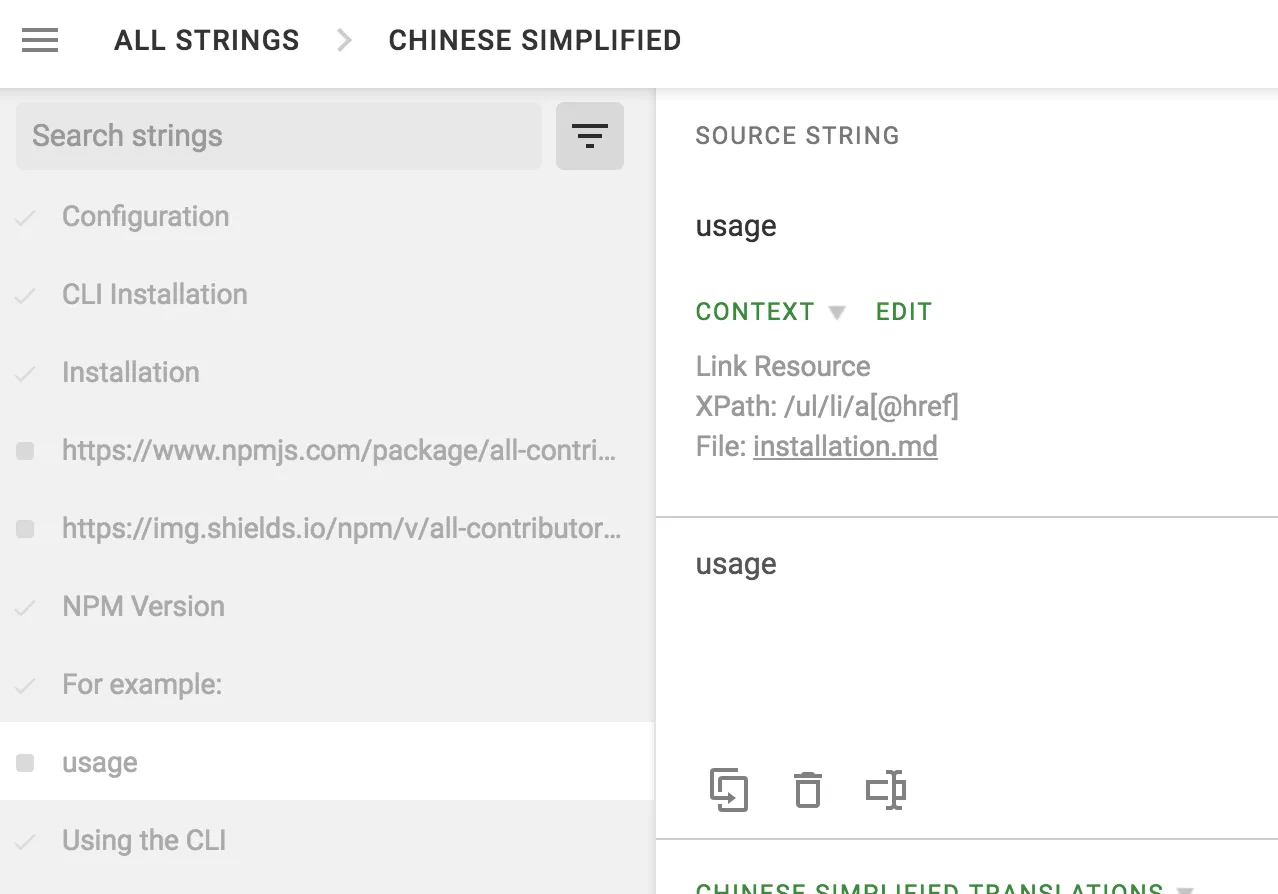
However, it’s recommended to translate any content that would contribute to a better comprehension like the comments in
codetags as long as it doesn’t change the actual code since it only understands English.
Comment faire
Section intitulée « Comment faire »Connectez-vous sur Crowdin
Section intitulée « Connectez-vous sur Crowdin »- Go to the crowdin project, then sign up and/or log in.
- Rejoignez le projet “Tous les contributeurs” et voila!
Traduire les mots
Section intitulée « Traduire les mots »- Go to the crowdin project.
- Cliquez sur le drapeau de la langue à laquelle vous souhaitez traduire la documentation.
- Click on any
*.mdfiles that aren’t completely translated (read showing 100% on the right-hand side) - Write your translation in the “Enter translation here” field (which would correspond to the translation of the text in the “SOURCE STRING” field above) then click “SAVE”
- For proofreaders only: You can either approve translation suggestions (whether it’s done by you or someone else), which you will find in the “[LANGUAGE] TRANSLATIONS” section, by clicking on the :ballot_box_with_check: or delete them by clicking on the :wastebasket: icon.
Déploiements de changement
Section intitulée « Déploiements de changement »After you translate strings in any given language, you won’t see those changes appearing live until the main branch was updated followed by a successful deployment.
Run the website locally
Section intitulée « Run the website locally »All Contributors currently uses Astro with Starlight for our documentation and website.
To build the docs locally:
-
Make sure
npmis installed on your machine. Use the nodejs documentation if you aren’t sure how to installnpm.To check that npm is installed run the following in your favorite shell:
Terminal window npm -v -
Next, make sure you have at least node version 0.22 (LTS) or higher. To check the version, use:
Terminal window node -vIf you don’t have atleast version
.22or higher, please install node or upgrade your current version. -
Install all dependencies:
Terminal window npm iTerminal window pnpm iTerminal window yarn i -
Once you have completed the above, you can launch a server locally that will build and run the docs locally. In your favorite shell run:
Terminal window npm run startTerminal window pnpm startTerminal window yarn start -
Then, go to
http://localhost:4321and you will see the all contributors website there!
Refresh the browser page as needed when editing markdown pages.
Linting and formatting your contribution
Section intitulée « Linting and formatting your contribution »If you make changes to a markdown file in the site, then our linting action will check those changes. To run the linter yourself locally on the documentation before submitting a PR use:
-
Lint: Scans for code smells and best-practice violations.
Terminal window npm run lint -
Lint & Fix: Scans and automatically applies safe fixes to your code.
Terminal window npm run lint-fix
-
Lint: Scans for code smells and best-practice violations.
Terminal window pnpm lint -
Lint & Fix: Scans and automatically applies safe fixes to your code.
Terminal window pnpm lint-fix
-
Lint: Scans for code smells and best-practice violations.
Terminal window yarn lint -
Lint & Fix: Scans and automatically applies safe fixes to your code.
Terminal window yarn lint-fix
“(” ./installation”)”
Section intitulée « “(” ./installation”)” »We use Lychee to validate all links within the repository. This ensures that we don’t include any links that lead to broken pages.
If you want to run the link-check locally, run the following command:
npm run link-checkpnpm link-checkyarn link-checkIf your changes introduced any broken links, Lychee will tell you which links you have to fix in the output.
Ajoutez-vous même en tant que contributeur
Section intitulée « Ajoutez-vous même en tant que contributeur »To add yourself to the table of contributors, follow the bot usage instructions.